The WooCommerce System Status report is useful for troubleshooting issues with your store. Containing a wide variety of information and tools, you can check software versions, server settings, and more from within.
System Status #
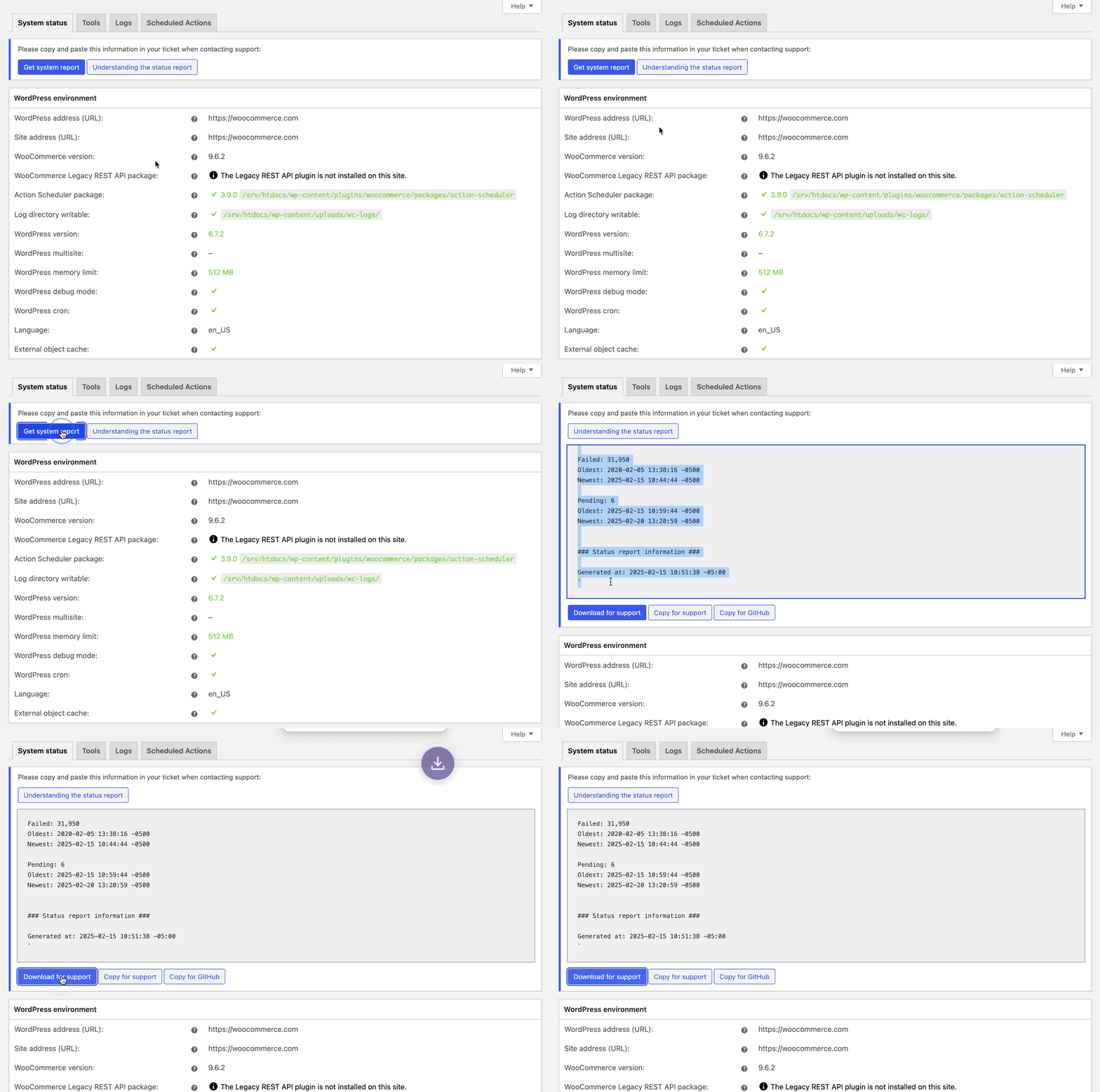
We encourage you to use the info below, before opening a support request with Woo Support. But we’re here to help if needed. To view your System Status report and copy it for support:
- Go to: WooCommerce > Status.
- Select Get System Report and then either Copy for support to copy and paste it into your Support Request or Download for support to upload as a file attachment. The information included will help our support team narrow down the issue much quicker.
WordPress Environment #
The WordPress Environment section provides general information about your site and WordPress installation as well as which features are enabled.
| Field Name | Description | Example |
|---|---|---|
| WP address (URL) | URL of your site’s homepage. | https://example.com |
| Site address (URL) | Root URL of your site. | https://example.com |
| WC Version | Version of WooCommerce installed on your site. | 6.5.1 |
| WC REST API package | Version of WooCommerce REST API package installed on your site. | 6.5.1 /srv/htdocs/wp-content/plugins/woocommerce/packages/woocommerce-rest-api |
| WC Blocks package | Version of WooCommerce Blocks package installed on your site. | 7.4.3 /srv/htdocs/wp-content/plugins/woocommerce/packages/woocommerce-blocks/ |
| Action Scheduler package | Version of Action Scheduler package installed on your site. | 3.4.0 /srv/htdocs/wp-content/plugins/woocommerce/packages/action-scheduler |
| Log Directory Writable | Whether the WooCommerce log directory is writable, and the location. |  /srv/www/wp-content/uploads/wc-logs/ |
| WP Version | Version of WordPress installed on your site. | 6.0 |
| WP Multisite | Whether you have WordPress Multisite enabled. | – (no) |
| WP Memory Limit | Maximum memory (RAM) that your site can use at one time. Learn how to increase this limit here. | 256 MB |
| WP Debug Mode | Displays whether WordPress is in Debug Mode. | – |
| WP Cron | Displays whether WordPress Cron is enabled. | |
| Environment type | Displays the current environment type (WP_ENVIRONMENT_TYPE) set for the site | production |
| Language | Current language used by WordPress. Default = English | en_US |
| External Object Cache | Whether WordPress is using an external cache. | |
Database #
This tells you your current database version, and lists all database tables and whether or not they exist.
| Field Name | Example |
|---|---|
| WC Database Version Version of WooCommerce that the database is formatted for. | 6.5.1 |
| Database prefix | wp_ |
| Total Database Size | 2.06MB |
| Database Data Size | 8.48MB |
| Database Index Size | 2.21MB |
| wp_woocommerce_sessions | Data: 0.02MB + Index: 0.02MB + Engine InnoDB |
| wp_woocommerce_api_keys | Data: 0.02MB + Index: 0.03MB + Engine InnoDB |
| wp_woocommerce_attribute_taxonomies | Data: 0.02MB + Index: 0.02MB + Engine InnoDB |
| wp_woocommerce_downloadable_product_permissions | Data: 0.02MB + Index: 0.06MB + Engine InnoDB |
| wp_woocommerce_order_items | Data: 0.02MB + Index: 0.02MB + Engine InnoDB |
| wp_woocommerce_order_itemmeta | Data: 0.02MB + Index: 0.03MB + Engine InnoDB |
| wp_woocommerce_tax_rates | Data: 0.02MB + Index: 0.06MB + Engine InnoDB |
| wp_woocommerce_tax_rate_locations | Data: 0.02MB + Index: 0.03MB + Engine InnoDB |
| wp_woocommerce_shipping_zones | Data: 0.02MB + Index: 0.00MB + Engine InnoDB |
| wp_woocommerce_shipping_zone_locations | Data: 0.02MB + Index: 0.03MB + Engine InnoDB |
| wp_woocommerce_shipping_zone_methods | Data: 0.02MB + Index: 0.00MB + Engine InnoDB |
| wp_woocommerce_payment_tokens | Data: 0.02MB + Index: 0.02MB + Engine InnoDB |
| wp_woocommerce_payment_tokenmeta | Data: 0.02MB + Index: 0.03MB + Engine InnoDB |
| wp_woocommerce_log | Data: 0.02MB + Index: 0.02MB + Engine InnoDB |
| wp_actionscheduler_actions | Data: 0.02MB + Index: 0.11MB + Engine InnoDB |
| wp_actionscheduler_claims | Data: 0.02MB + Index: 0.02MB + Engine InnoDB |
| wp_actionscheduler_groups | Data: 0.02MB + Index: 0.02MB + Engine InnoDB |
| wp_actionscheduler_logs | Data: 0.02MB + Index: 0.03MB + Engine InnoDB |
| wp_commentmeta | Data: 0.02MB + Index: 0.03MB + Engine InnoDB |
| wp_comments | Data: 0.02MB + Index: 0.09MB + Engine InnoDB |
| wp_links | Data: 0.02MB + Index: 0.02MB + Engine InnoDB |
| wp_mailchimp_carts | Data: 0.02MB + Index: 0.00MB + Engine InnoDB |
| wp_mailchimp_jobs | Data: 0.02MB + Index: 0.00MB + Engine InnoDB |
| wp_options | Data: 2.05MB + Index: 0.06MB + Engine InnoDB |
| wp_postmeta | Data: 0.06MB + Index: 0.03MB + Engine InnoDB |
| wp_posts | Data: 0.05MB + Index: 0.06MB + Engine InnoDB |
| wp_termmeta | Data: 0.02MB + Index: 0.03MB + Engine InnoDB |
| wp_terms | Data: 0.02MB + Index: 0.03MB + Engine InnoDB |
| wp_term_relationships | Data: 0.02MB + Index: 0.02MB + Engine InnoDB |
| wp_term_taxonomy | Data: 0.02MB + Index: 0.03MB + Engine InnoDB |
| wp_usermeta | Data: 0.02MB + Index: 0.03MB + Engine InnoDB |
| wp_users | Data: 0.02MB + Index: 0.05MB + Engine InnoDB |
| wp_wc_admin_notes | Data: 0.02MB + Index: 0.00MB + Engine InnoDB |
| wp_wc_admin_note_actions | Data: 0.02MB + Index: 0.02MB + Engine InnoDB |
| wp_wc_category_lookup | Data: 0.02MB + Index: 0.00MB + Engine InnoDB |
| wp_wc_customer_lookup | Data: 0.02MB + Index: 0.03MB + Engine InnoDB |
| wp_wc_download_log | Data: 0.02MB + Index: 0.03MB + Engine InnoDB |
| wp_wc_order_coupon_lookup | Data: 0.02MB + Index: 0.03MB + Engine InnoDB |
| wp_wc_order_product_lookup | Data: 0.02MB + Index: 0.06MB + Engine InnoDB |
| wp_wc_order_stats | Data: 0.02MB + Index: 0.05MB + Engine InnoDB |
| wp_wc_order_tax_lookup | Data: 0.02MB + Index: 0.03MB + Engine InnoDB |
| wp_wc_product_meta_lookup | Data: 0.02MB + Index: 0.09MB + Engine InnoDB |
| wp_wc_tax_rate_classes | Data: 0.02MB + Index: 0.02MB + Engine InnoDB |
| wp_wc_webhooks | Data: 0.02MB + Index: 0.02MB + Engine InnoDB |
Post Type Counts #
This shows what post types exist in your store and how many posts exist within each type. Varies according to what plugins you have installed.
| Post Type Name | Count | |
|---|---|---|
| attachment | 16 | |
| customize_changeset | 3 | |
| nav_menu_item | 5 | |
| page | 7 | |
| post | 25 | |
| product | 36 | |
| product_variation | 4 | |
| scheduled-action | 2 | |
| shop_order | 10 |
Security #
Displays whether your connection is protected. Errors should be hidden from untrusted visitors trying to view your information.
| Security | ||
|---|---|---|
| Secure connection (HTTPS): | Is the connection to your store secure? | |
| Hide errors from visitors | Error messages can contain sensitive information about your store environment. These should be hidden from untrusted visitors. | |
Active Plugins #
This displays all plugins installed and active on your site. You can view current version numbers of your software and if any extensions have updates available.
| Active Plugins (5) | |
|---|---|
| Jetpack by WordPress.com | by Automattic – 10.9.1 |
| WooCommerce Blocks | by Automattic – 7.7.0 |
| WooCommerce | by Automattic – 6.5.1 |
| WooCommerce Stripe Gateway | by WooCommerce – 6.4.0 |
Inactive Plugins #
This displays all plugins installed but inactive on your site. You can view current version numbers of your software and if any extensions have updates available.
| Inactive Plugins (3) | |
|---|---|
| Classic Editor | by WordPress Contributors – 1.5 |
| Health Check & Troubleshooting | by The WordPress.org community – 1.4.2 |
| Homepage Control | by WooThemes – 2.0.3 |
Dropin Plugins #
These are in the wp-content but only specific file names. They replace/augment very specific functionality within WordPress.
| Dropin Plugins (1) | |
|---|---|
| object-cache.php | Memcached |
Settings #
This shows general settings for your site.
| Field Name | Description | Example |
|---|---|---|
| API Enabled | Does your site have REST API enabled? | |
| Force SSL | Does your site force an SSL certificate for transactions? | |
| Currency | What currency are prices displayed in and payments processed in | USD ($) |
| Currency Position | Position of the currency symbol when displaying prices. | left |
| Thousands Separator | Character used for a thousands separator in displayed prices. | , |
| Decimal Separator | Character used for decimal points in displayed prices. | . |
| Number of Decimals | Places shown after decimal points in displayed prices. | 2 |
| Taxonomies: Product types | Terms used for product types/statuses | booking, bundle, external, grouped, simple, subscription, variable |
| Taxonomies: Product visibility | A list of terms used for product visibility. | exclude-from-catalog, exclude-from-search, featured, outofstock, rated-1, rated-2, rated-3, rated-4, rated-5. |
| Connected to WooCommerce.com | Are your sites connected to WooCommerce.com? | |
| Enforce Approved Product Download Directories: | Are Approved Product Download Directories being enforced? | – |
WooCommerce Pages #
This shows page IDs and Permalinks designated as WooCommerce pages.
For example: If your site is https://example.com, a user would get to the Cart page by going to https://example.com/cart/
| Field Name | Description | Example |
|---|---|---|
| Shop Base | URL of your WooCommerce shop’s homepage (along with the Page ID). | #3 – /shop/ |
| Cart | URL of your WooCommerce shop’s cart (along with the page ID). | #4 – /cart/ |
| Checkout | URL of your WooCommerce shop’s checkout (along with the page ID). | #5 – /checkout/ |
| My Account | URL of your WooCommerce shop’s “My Account” Page (along with the page ID). | #6 – /my-account/ |
| Terms and conditions | URL of your Terms and conditions page. (along with the page ID). | #361 – /terms-and-conditions/ |
Theme #
This displays information about the current theme running on your installation.
This could be a more problematic area of a site, as there is no standard on what themes should and should not do, and non-Woo themes can cause conflicts with WooCommerce or one of its extensions.
If you’re experiencing issues with your site, we recommend temporarily switching to the free Storefront Theme. If your problem is resolved while the Storefront theme is active, then the issue is with the theme. To resolve, check for updates or contact the theme developer to see if there is a fix.
| Field Name | Description | Example |
|---|---|---|
| Name | Name of the active theme. | Pharmacy |
| Version | Installed version of the current active theme. | 2.0.14 |
| Author URL | Developer or theme URL | https://woocommerce.com |
| Child Theme | Whether the active theme is a child theme, and what the parent theme is. | |
| Parent theme name: | Name of the parent theme. | Storefront |
| Parent theme version: | Version of the the parent theme. | 4.1.0 |
| Parent theme author URL: | Developer or theme URL of the parent theme. | https://woocommerce.com |
| WooCommerce Support | Whether the theme declares WooCommerce support. | |
Templates #
This section shows any files that are overriding the default WooCommerce template pages, and also notes if the templates are outdated.
| Templates | |
|---|---|
| Overrides | child-theme/woocommerce/checkout/form-checkout.php |
If you are experiencing trouble with any of the pages displayed, switching to the Storefront theme will ensure that the original template files are used. For more information, see Fixing Outdated WooCommerce Template Files. For a long-term fix, you need to contact the theme developer.
Subscriptions #
See the documentation here for details on what the WooCommerce Subscriptions extension adds to the System Status Report.

Action Scheduler #
This shows scheduled action counts with previous and most recent dates. For more technical information about the Action Scheduler and FAQ, please see ActionScheduler.org.
| Action Scheduler | ||||
|---|---|---|---|---|
| Version: | 3.4.0 | |||
| Data store: | ActionScheduler_HybridStore | |||
| Action Status | Count | Oldest Scheduled Date | Newest Scheduled Date | |
| Canceled | 3 | 2020-02-27 18:22:53 +0000 | 2020-08-29 14:18:37 +0100 | |
| Complete | 35,320 | 2020-02-20 10:01:00 +0000 | 2020-03-06 13:15:31 +0000 | |
| Failed | 68 | 2018-03-12 10:18:36 +0000 | 2019-11-28 13:26:52 +0000 | |
| Pending | 20 | 2020-03-06 13:16:31 +0000 | 2020-04-01 04:00:00 +0100 |
Can’t Access the System Status Report? #
If you’re not able to access your site’s System Status Report for any reason, you have a couple of alternatives.
You can try accessing the relevant page directly by going to [example.com]/wp-admin/admin.php?page=wc-status, replacing example.com with your site’s domain.
Or you can navigate from your admin homepage to Tools > Site Health > Info and share the information from there. Much like the System Status report, the Site Health report also has a copy to clipboard button for easy sharing.
Tools #
The Tools tab is where you will find WooCommerce system tools. These settings can assist with troubleshooting site issues, optimizing your site’s performance, and managing settings.
Learn more about WooCommerce system tools.
Logs #
The Logs tab is where WooCommerce keeps logs of all events happening in your store. Some logs, like fatal-errors are kept automatically, while others, like those for payment gateways, first need to be enabled in the relevant extension’s settings.
From this tab, you can click on the logs you would like to view in order to open the full log file. Or you can search within all log files by entering the term you are searching for in the search box.
If your site experiences a fatal error, they may be logged here under a log named fatal-errors. This is useful when debugging.
Learn more about navigating and understanding WooCommerce error logs.
WooCommerce Shipping & Tax #
Users of WooCommerce Shipping & Tax have a fifth tab that allows them to check the health of the extension, specific Services in use, a debugging section, and more.
Health displays the status of connected parts – if anything with WooCommerce or Jetpack needs attention, and if Services is up or down.
Services display how specific Services are doing. Perhaps they’re unused, have an error needing attention, or working fine. You can enable debug logging to capture issues, and also contact our Support team to help configure your printer for printing shipping labels.
Scheduled Actions #
The Scheduled Actions tab allows you to view a log of processes that are run in the background on your site and include tasks such as subscription renewals, some customer emails, and checking for theme or plugin updates. You will be able to see the status for each task and which were completed, which are pending, and more detailed error information for any that failed to run.
Learn more about WooCommerce scheduled actions.
Questions and support #
Do you still have questions and need assistance?
This documentation is about the free, core WooCommerce plugin, for which support is provided in our community forums on WordPress.org. By searching this forum, you’ll often find that your question has been asked and answered before.
If you haven’t created a WordPress.org account to use the forums, here’s how.
- If you’re looking to extend the core functionality shown here, we recommend reviewing available extensions in the WooCommerce Marketplace.
- Need ongoing advanced support or a customization built for WooCommerce? Hire a Woo Agency Partner.
- Are you a developer building your own WooCommerce integration or extension? Check our Developer Resources.


