Activating WooCommerce adds 4 main menu items to the WordPress admin dashboard. These are the WooCommerce, Products, Analytics, and Marketing menu items.
WooCommerce menu #

The main top-level WooCommerce menu item is the gateway to the most-used functions of your store. It includes a dashboard overview in Home, links to orders and customers, settings, store status, and extensions purchased from WooCommerce.com.
Home #
Home takes you to the Home screen, also known as the WooCommerce dashboard. From there you can stay on top of your store performance, get useful tips and insights to grow your business, and quickly access the most important areas for store management. Follow the button below to read more about the home screen in WooCommerce.
Orders #
The Orders screen is for viewing and managing existing orders, or manually adding new orders. Select the button below to learn more about managing orders.
Customers #
The Customers section offers a Customer Report. It’s a list that can be searched and filtered according to requirements to view relevant customer data.
Reports #
The Reports section offers legacy reports with insights into orders, customers, stocks and taxes. WooCommerce Analytics is a more powerful and modern alternative that currently coexists with these reports until the former are depricated.
Settings #
The Settings screen is where the bulk of high-level WooCommerce settings are configured, including general, products, tax, shipping, payments, accounts and privacy, emails, integrations, and advanced settings like page setups, REST API, etc.
Status #
The Status page is a useful for troubleshooting on your own or when contacting support. Download the System Status Report and review, or attach it to your support ticket. It provides an overall snapshot of your setup and potential conflicts.
Extensions #
The Extensions sections is where you can browse for additional free/premium plugins and extensions from WooCommerce.com to add functionality and features to your site. Use the Discover, Browse, or Themes tabs to discover extension to enhance your store with, and manage your subscriptions from the My Subscriptions tab.
Products Menu #
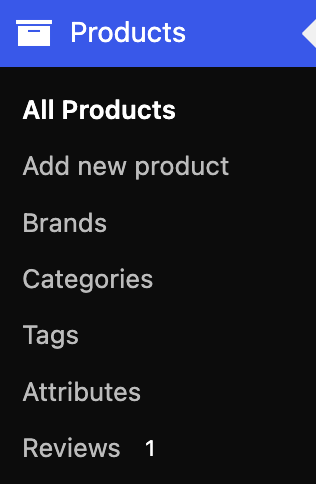
The Prouducts top-level menu has sections relating to products, such as viewing and adding new products, setting up product categories and tags, and managing product attributes.
All Products #
All Products is a list of products in the store be they published, in draft, or in the trash. New products can be added manually from this screen, individual or bulk edits can be performed, and products can be imported or exported via CSV.
Add New #
The Add New menu item is a shortcut straight to the Add new product screen for the manual addition of a new product.
Brands #
Brands is a built in taxonomy to help you organize your products by a brand.
Categories, Tags, and Attributes #
These 3 menu items respective link to the management screens of categories, tags, and attributes.
Categories, Tags, and Attributes section →
Reviews #
Reviews takes you to the Product Reviews section from where to manage reviews left by visitors to your site on products that they’ve used or purchased.
Analytics Menu #

The Analytics menu offers a bevy of reports through which to dissect your store’s performance covering everything through products, revenue, orders, coupons, taxes, downloads, stock, and more.
Marketing Menu #
The marketing menu provides access to marketing functionality vital to your store’s promotion and growth.
Overview #
This section, also called the Marketing Hub, offers tools and knowledge for promoting your store and driving sales.
Coupons #
The Coupons menu item links to the Coupons screen from where to add a new coupon or manage existing ones.
Questions and support #
Do you still have questions and need assistance?
This documentation is about the free, core WooCommerce plugin, for which support is provided in our community forums on WordPress.org. By searching this forum, you’ll often find that your question has been asked and answered before.
If you haven’t created a WordPress.org account to use the forums, here’s how.
- If you’re looking to extend the core functionality shown here, we recommend reviewing available extensions in the WooCommerce Marketplace.
- Need ongoing advanced support or a customization built for WooCommerce? Hire a Woo Agency Partner.
- Are you a developer building your own WooCommerce integration or extension? Check our Developer Resources.


