What Is APES?
Every business runs on a simple pattern. If this happens, someone does that. An order comes in, so it gets approved. A customer signs up, so someone gets notified. A deadline passes, so a task gets escalated. Most companies still run this pattern through emails, spreadsheets and someone's memory. A stock transfer sits in an inbox for two days because the approver missed the email. A new hire's access request gets typed into three different systems by three different people, each slightly differently. None of this is anyone's fault. It is simply what happens when the rules of a business live in people's heads instead of in software.
APES is Appnicorn's workflow platform. It gives teams a place to turn the rules that already run their business into real software, without asking anyone to learn to code and without asking an IT team to manage a server. It is built for the people who understand the process, not just the people who understand programming. A person who has never written a line of code can open APES, describe what should happen when an order comes in, and watch it actually happen the same way every time.
Two Things, Wired Together
In APES, a business vertical such as stock, purchasing or customer service is packaged as a single unit called a module. A module is installed into a workspace in one governed step, and it carries everything that vertical needs together, rather than as separate pieces bolted on over time.
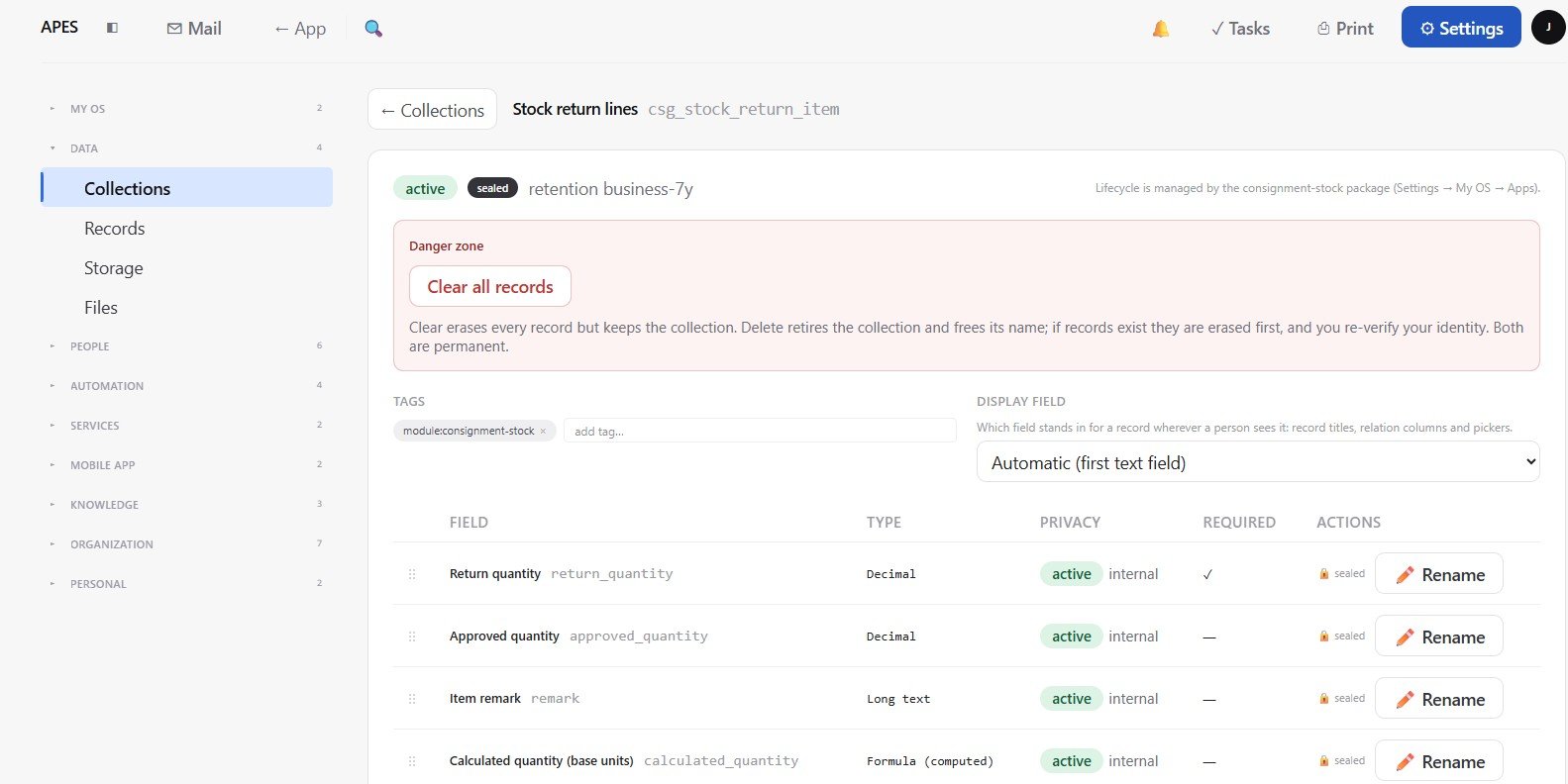
A module is built from collections, which hold the actual records, and relations, which connect those records to each other. It includes computed fields for values that should calculate themselves instead of being typed in by hand, forms for how people enter data, and pages for how people read it and navigate around it. It also includes roles and permission floors, which decide who can see and do what, along with the workflows and functions that carry out the day to day logic. All of it installs as one piece, and if any part of that install fails, the whole thing rolls back cleanly rather than leaving a workspace half configured.
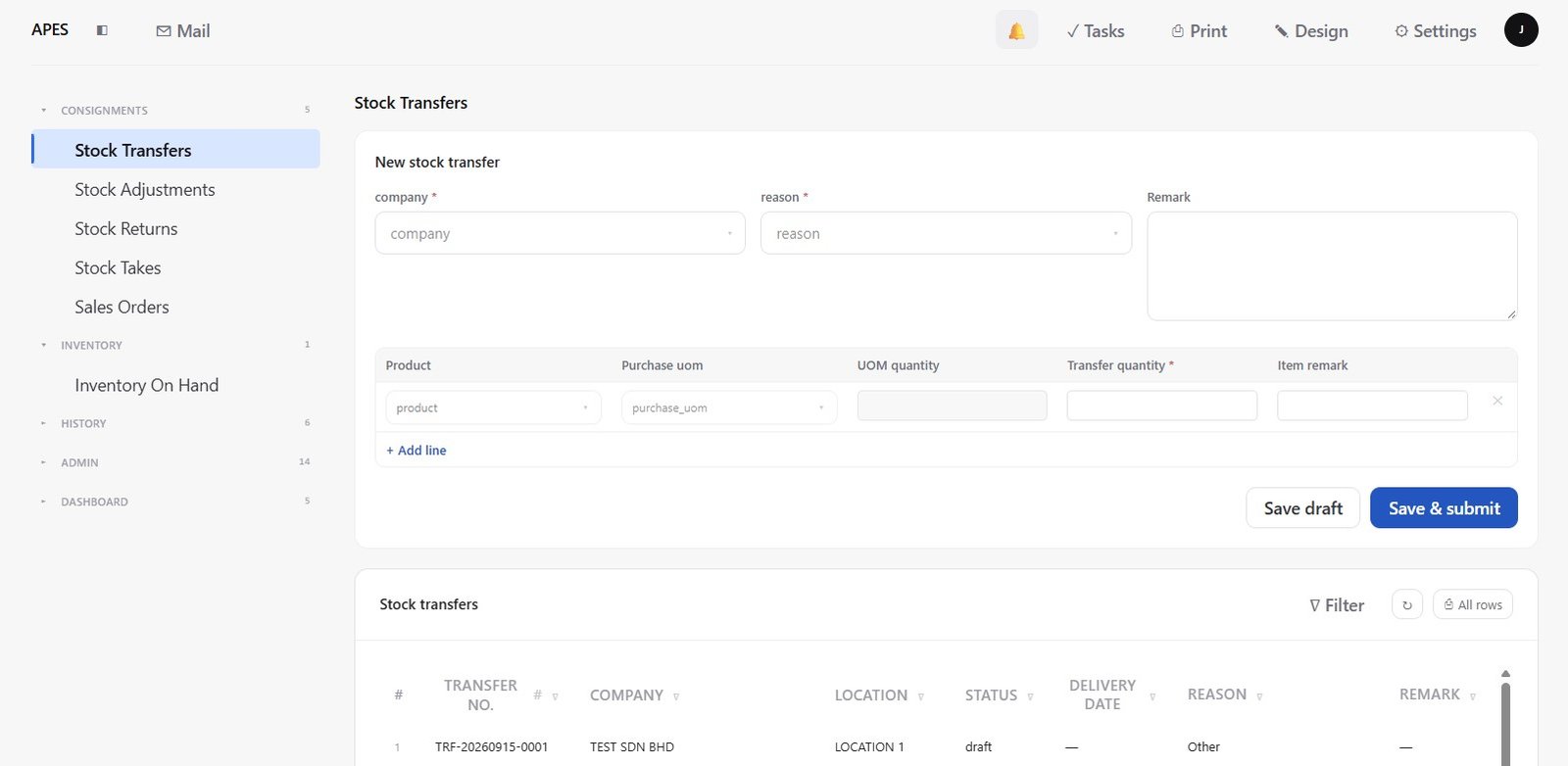
It helps to think of a module as two things working together. The first is the shape of your data, the collections, relations and fields that describe what your business actually keeps track of. The second is the logic that runs on top of that data, the workflows that decide what happens next. A stock module, for example, might hold products, locations and transfers as separate collections, relate a transfer to the product it moves and the location it moves to, and then run a workflow every time a new transfer is submitted.
What a Workflow Actually Looks Like
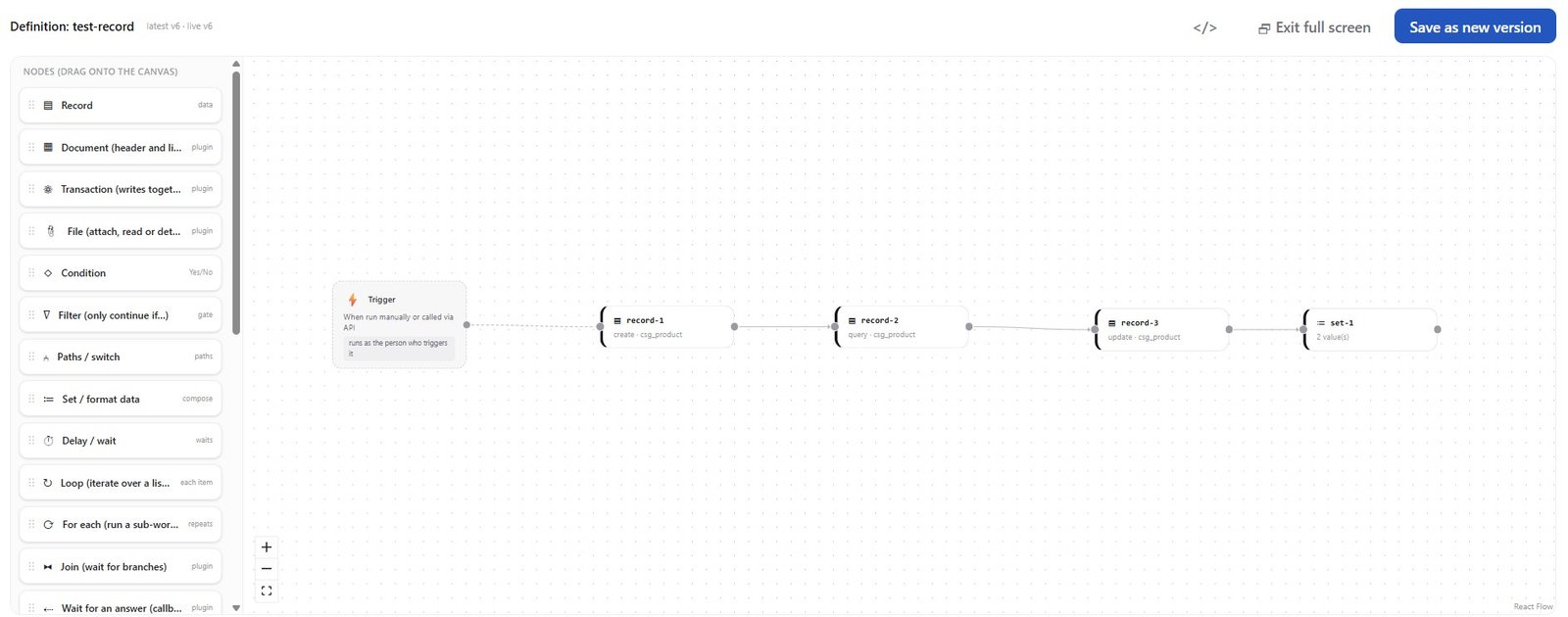
A workflow describes what should happen when something changes, such as a record being created, a date arriving, or a person clicking a button. Teams build this logic by connecting small, named steps on a canvas, and each step has one clear job.
APES currently ships with nineteen built in step types, which is enough to cover most business logic without reaching for custom code. A condition step checks whether something is true and branches the flow accordingly. A filter step decides whether a record should continue through the flow at all. A switch step branches on a single value rather than a yes or no question. A delay step waits, either for a fixed amount of time or until a specific date. A human task step hands a decision to a real person and waits for their answer. A notify step sends an alert to a role, a person or a channel. An HTTP step is the one way a workflow can reach out to another system on the internet, which matters for security and is explained further below. There are also steps for records, documents, transactions, files, loops, joining parallel branches, waiting on an external callback, calling another workflow, and running a registered function or a short custom script when something more specific is needed.
It helps to see this as a concrete example rather than a list. Picture a stock transfer that needs approval before it can be completed. The workflow starts the moment someone submits a transfer request. A condition step checks the value of the transfer. If it is below a certain amount, the workflow moves straight ahead and marks it approved automatically. If it is above that amount, the workflow creates a human task and assigns it to the right approver.
That approver does not need to open the workflow builder or understand how any of this was configured. They simply see a task waiting for them, with the details of the transfer already attached. Once they approve or reject it, the workflow continues from that exact point. A notify step then lets the requester know what happened, whether that is a message inside the platform, an email, or both. If the approver takes too long, a delay step can escalate the task to someone else automatically. None of this requires a developer to be involved once the workflow has been built, and none of it depends on someone remembering to follow up.
Built for Three Different People
The same workspace has to make sense to different people, for different reasons. APES is built so that none of them have to work around the tool to get their job done.
The first is the operations team. They are the ones chasing approvals and following up on tasks. In APES, a task lands directly in their queue. Once they approve or reject it, the workflow continues automatically from that exact point. There is no spreadsheet to update and no email to send hoping someone notices it.
The second is the person who owns the process itself. This is often someone outside of engineering, someone who understands how the business actually works better than anyone in IT does. They can drag a condition step onto the canvas, set a simple rule such as checking whether an order total is above a certain amount, and connect that rule to a notification step. All of this can be done without opening a support ticket or waiting on a developer to find time for it.
The third is the IT team, and their concern is trust. Every workflow in APES declares exactly which outside systems it is allowed to contact before it is ever allowed to run, and the HTTP step is the only door through which a workflow can reach the outside world at all. Every secret or credential used inside a workflow is stored securely in a vault and referenced by name, never typed directly into the workflow itself. If someone were to open a workflow and read every field in it, they would not find a password or an API key sitting in plain text. This means sensitive information cannot accidentally leak out through a workflow that was never meant to have access to it, and it means an audit of what a workflow can reach is possible without reading every line of its logic.
Alongside all of this, every business using APES runs in its own separate workspace. Each workspace has its own data, its own users and its own workflows, even though everyone is running on the same underlying platform. Setting one up does not feel like setting up a server. It feels like signing up for software, and the separation between one company's workspace and another's is enforced by the platform itself rather than left to configuration.
It Already Talks to the Tools You Use
A workflow platform that can only move information around inside itself is not especially useful. It becomes far more valuable when it can reach outside itself and work with the tools a business already relies on.
APES already includes real, working connections to a number of recognizable services. This includes sign in through Google, Microsoft Entra ID and Apple, so teams can use identity providers they already trust instead of managing a separate password for yet another system. It also includes a direct connection to Claude, Anthropic's AI model. Teams can use it inside a workflow to summarise information, extract details from a block of text, classify a record, or draft a message automatically, all as one step in a larger process rather than a separate tool someone has to switch to. On top of that, APES connects to DocuSeal for electronic signatures, so a contract or approval document can be sent out, signed and returned without anyone leaving the workflow that triggered it. Connections to Lark, DingTalk and Airwallex round out the list, covering communication and finance for teams that already run on those platforms.
These are not features planned for a future release. They exist in the product today, and later posts in this series will walk through each one with real screenshots taken directly from the running platform, not illustrations from a slide deck.
What Comes Next
This post is meant to give you the overall picture. The rest of this series will go deeper into each part of it. We will walk through the complete set of workflow building blocks, look closely at how approvals and notifications actually behave, explain what the security model does and does not allow a workflow to do, and show live demonstrations of the integrations mentioned above. We will also walk through a real module built from start to finish, so you can see the platform being used the way an actual team would use it, with all the small decisions and trade offs that come with building something real rather than a demo.